How To Use Clipper on Your Android Phone or Wear OS by Google Smartwatch
Ready to get started? Click the links below for step-by-step instructions.

Tap to pay with Google Pay™ just add your Clipper card to Google Wallet™. Google Pay and Wallet work on a variety of phones. For Google phones, Pixel phones 7 or newer running Android OS, or Pixel watch 2 or newer running Wear OS, and must have an NFC chip. To check the version of your phone and if it has an NFC chip, go to Settings > About Phone > Android Version.
You cannot transfer blocked cards, cards with a Gator Pass or VTA SmartPass to Google Wallet. Motorola phones are currently not supported.
Common Questions
There are two ways you can set up a new Clipper card:
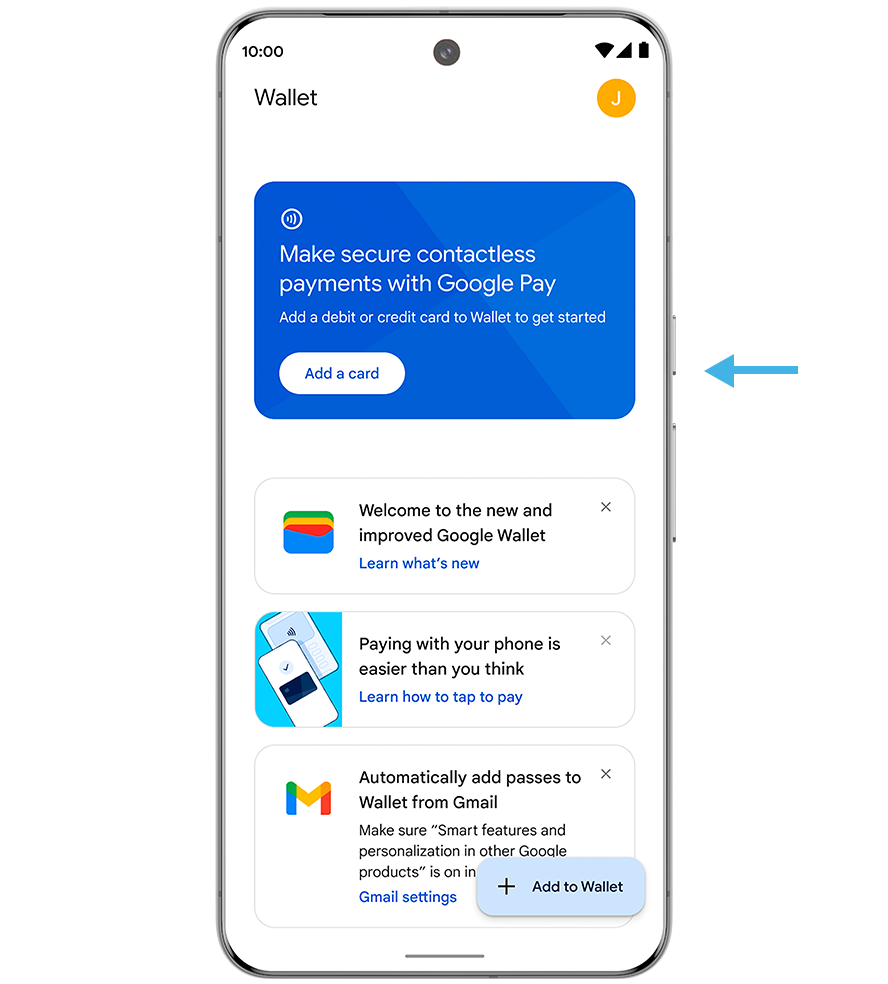
Option 1 (in Google Wallet):
- Open the Google Wallet app or download it on Google Play
- Select "+ Add to Wallet"
- Tap "Transit Pass" and and select "San Francisco Bay Area, CA"
- Follow the instructions on your phone to add your Clipper card
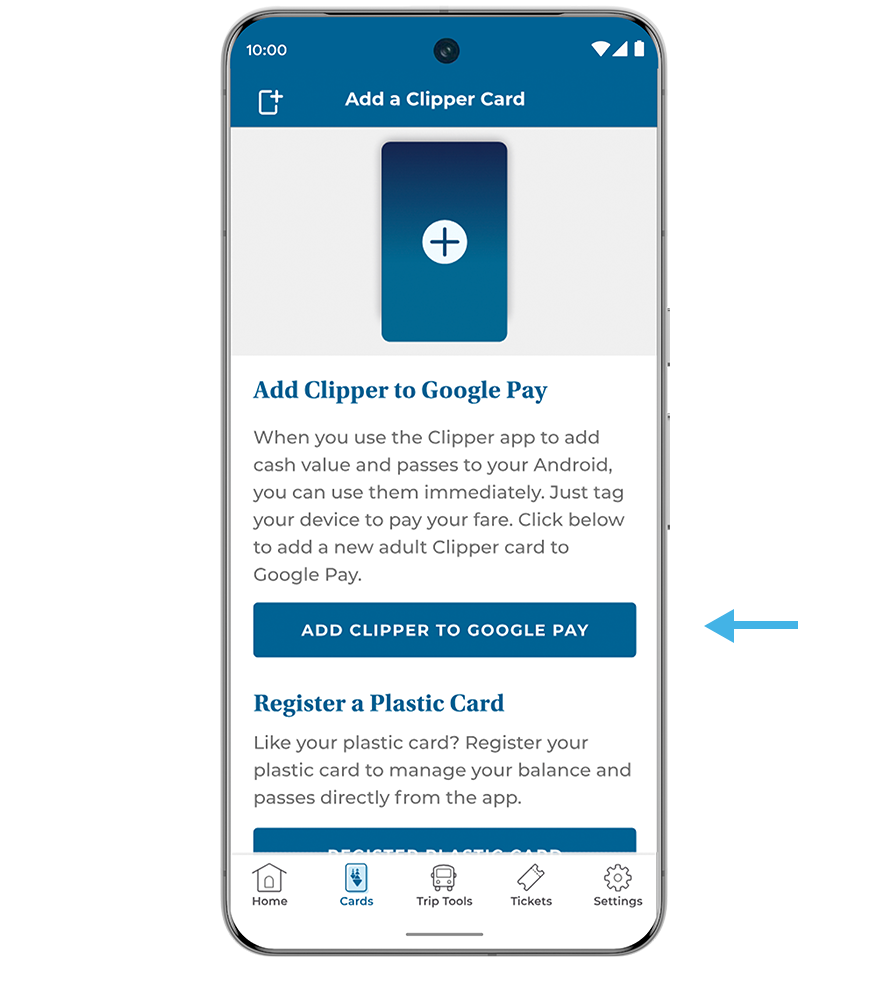
Option 2 (in Clipper app):
- Download the Clipper app from the Google Play Store opens in new window
- Create an account or sign into your existing account
- Select the "Cards" tab at the bottom of the screen, and either tap “+” icon at the top left, or scroll to the last card in the carousel and select “Add Clipper to Google Wallet"
- Select "Cash Value" or "Transit Pass" and follow directions for how you would like to add value to your Clipper card, and if you would like to set up Auto-Reload
- Select “Payment Method" and select the credit/debit card on file to complete your order. If you do not have a credit/debit card saved in Google Wallet, you can set up a one-time credit/debit card that will not be saved to your account
- Select "Add to Google Wallet" and follow the instructions in Wallet to complete the process
Your new Clipper card is now ready to use in Google Wallet!
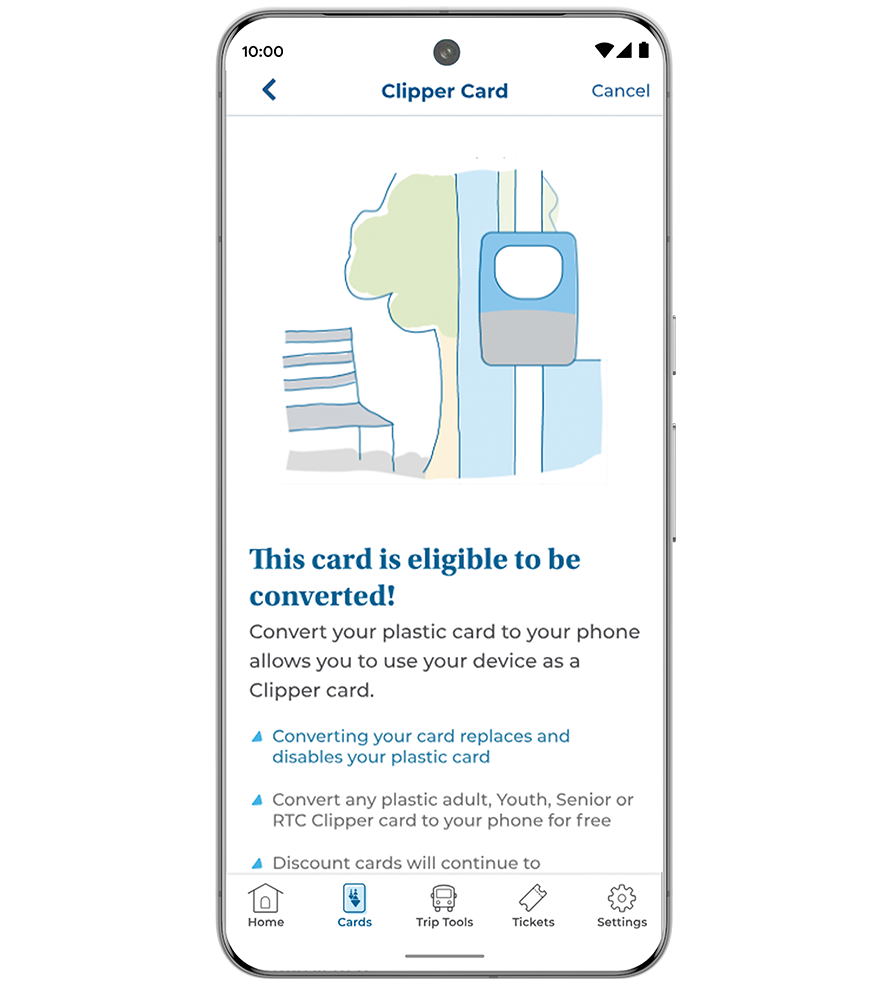
Once you transfer your plastic card to your Android, your plastic card will be deactivated from transit use.
- Open the Clipper App and log in to your account
- Tap the "Cards" tab and select "+" to add a new card
- Tap "Register a Plastic Clipper Card"
- Enter the 10-digit number on the back of your Clipper card and tap "Add Card"
- Tap "Convert Clipper to Your Phone"
- Name your card (optional) and tap "Continue"
- Hold your plastic card to the back of your device to continue transferring it to your phone – this may take up to a minute
- When the read is successful, tap “Add to Google Wallet”
- Tap "Accept and Continue" at the bottom of the screen to finish adding Clipper to Google Wallet
Note: If you are a bike share user or a Clipper ACCESS cardholder, you will need to keep your plastic card.
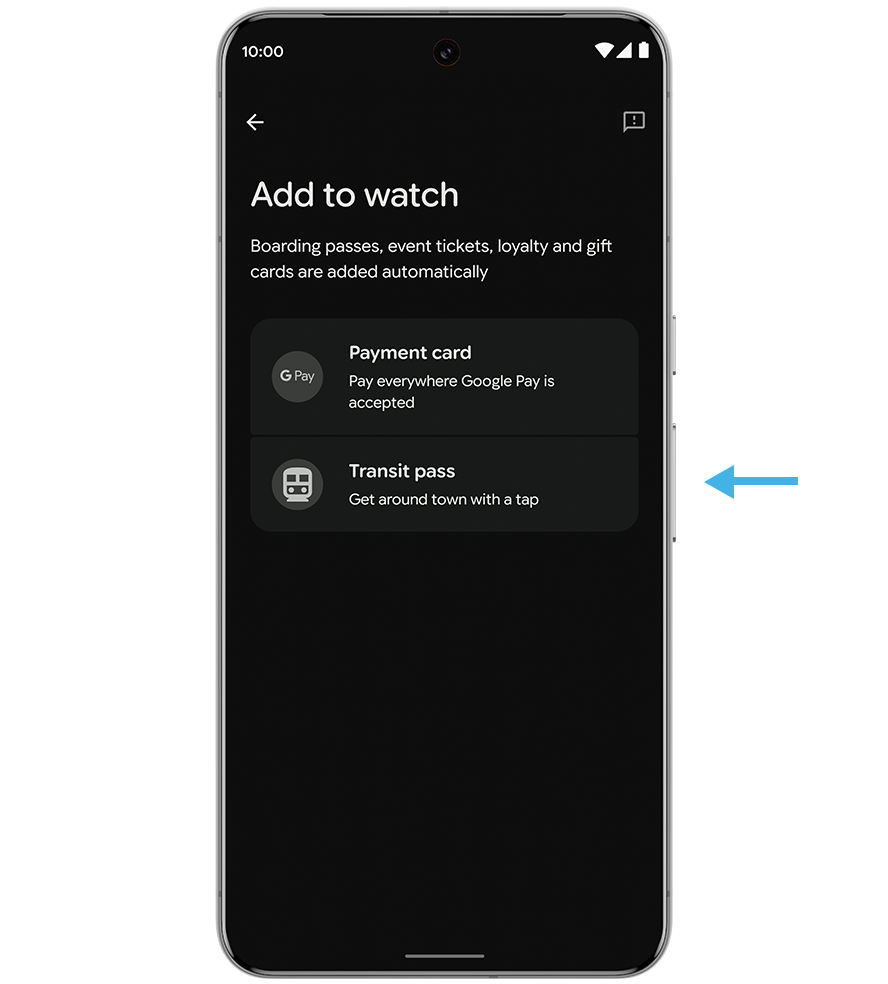
- Launch the Google Wallet app on your Wear OS smartwatch (If you have a Pixel Watch, simply double click the crown to open Google Wallet)
- Tap the "+ Card" to start
- Follow the directions and continue setup on your phone
- Tap “Add to watch” on your phone
- Select the "Transit pass" option
- Select Clipper and accept the terms and conditions
- Select payment method and the value you would like to add, then tap "Continue"
- Confirm amount and finish payment
- Launch the Google Wallet app on your Wear OS smartwatch
- Tap the "+ Card" to start
- Follow the directions and continue setup on your phone
- Tap "Add to watch" on your phone
- Select the “Transit pass” option
- Select the Clipper card that you would like to activate on the watch and wait a few seconds for the transfer to complete
To transfer a Clipper card from an Android phone to Wear OS smartwatch (like Pixel Watch):
There are two options to add value to your Clipper card on your Android phone:
Option 1 (in Google Wallet):
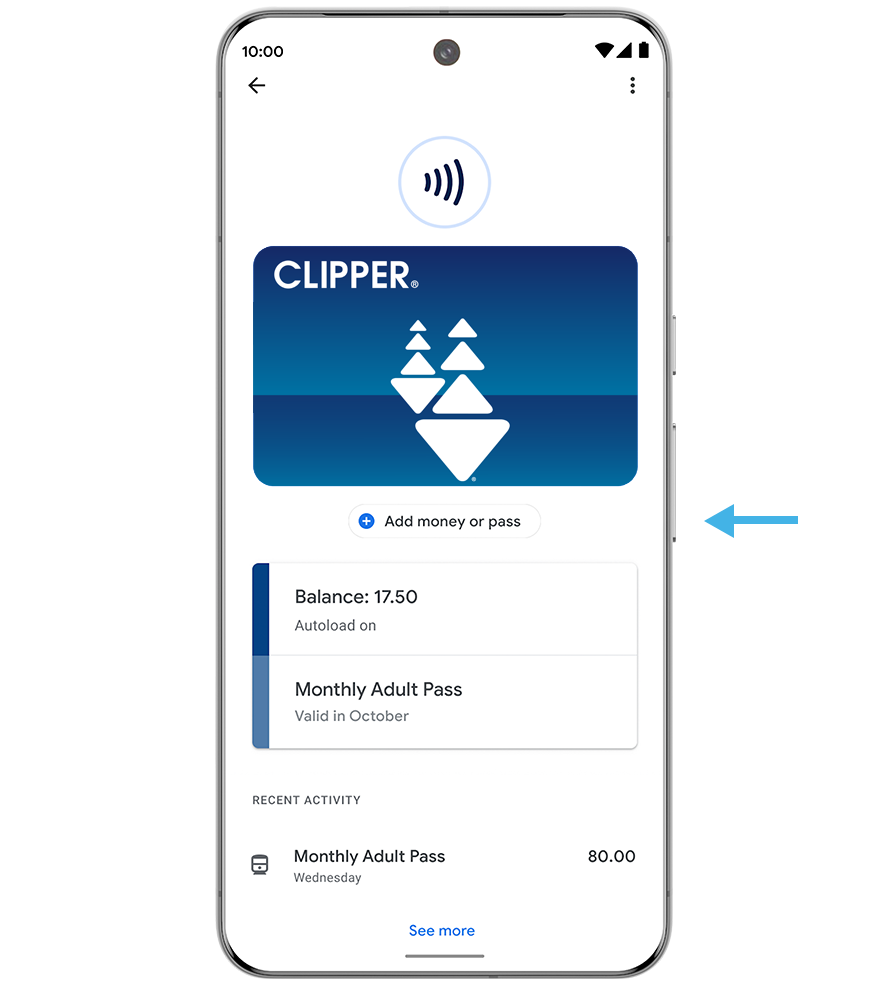
- Open your Clipper card
- Select the "Add money or pass" option in the card
- Select the payment method and the cash value you would like to add
- Confirm your payment info and select "Purchase"
- Once you have added your cash value, the balance will show on your new card
Option 2 (in Clipper app):
- Open the Clipper app and sign in to your Clipper account
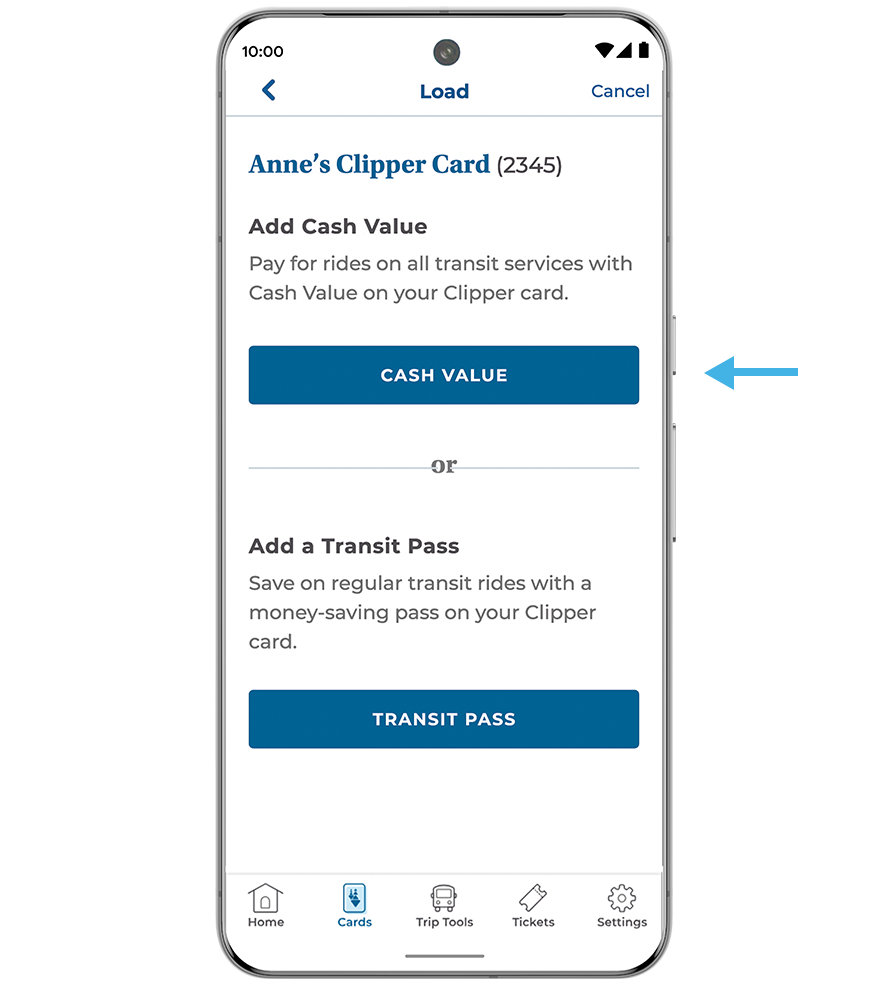
- Tap the "Cards" tab at the bottom of your screen and select the card you want to add value to
- Select "Load Cash Value or Passes"
- Select "Add Cash Value" to pay for rides on all transit services or "Add Transit Pass" if you want to purchase a pass
For Cash Value
- Select the amount you would like to add from the list, or enter a custom amount.
- Select "Enable Auto-Reload for selected amount" to automatically reload when your cash value is below $10
- Tap "Add to Cart"
For Transit Pass
- Tap "Add Transit Pass" and select your agency from the list and choose the pass you would like to purchase
- Select "Enable Auto-Reload" to automatically reload a new pass when your old one expires
- Tap "Add to Cart"
- Tap "Secure Checkout"
- Confirm or select your preferred Payment Method, and tap "Continue"
- Review your order details and tap "Place Order"
Your new balance will update in the Clipper app and in Google Wallet and is immediately ready to use on your Android device.
Option 1 (On your Android phone):
- Turn your phone screen on
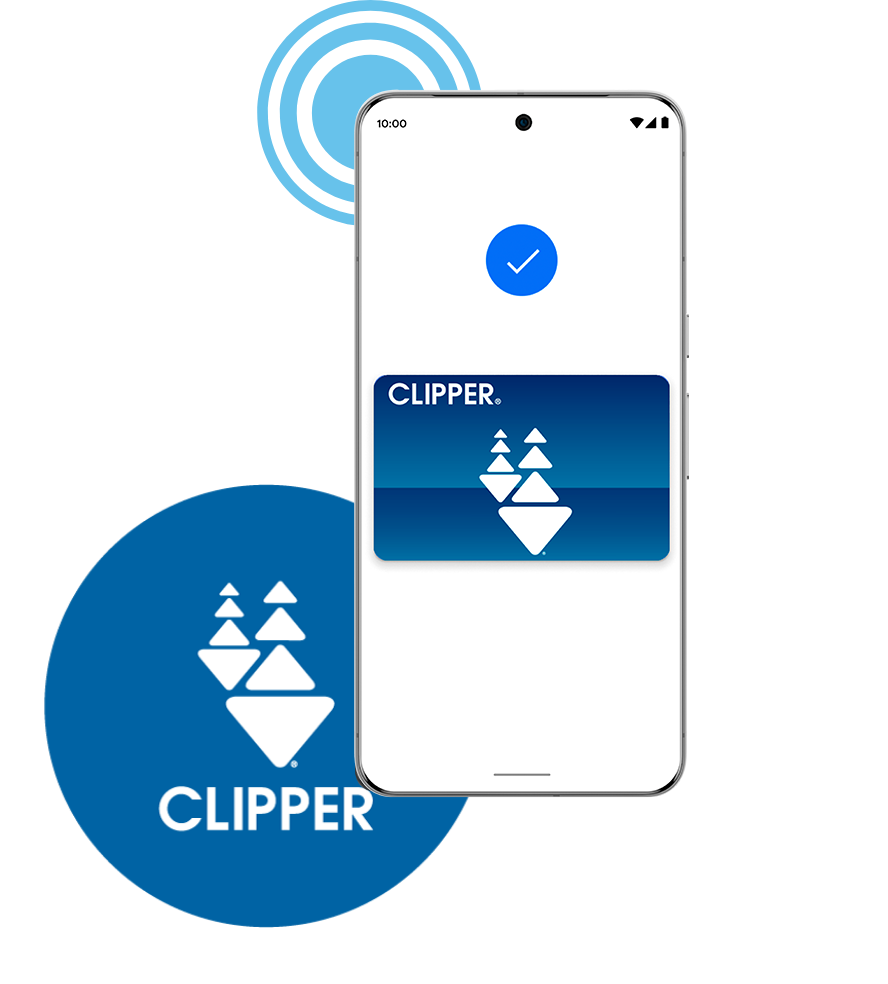
- Center your phone over the Clipper reader screen or target
- You will see a "Travel OK" message on a successful tap
Option 2 (On your Wear OS smartwatch):
- Make sure you are wearing your watch
- Launch the Google Wallet app on your Wear OS smartwatch (If you have a Pixel Watch, simply double click the crown to open Google Wallet)
- Center your watch over the card reader or target and wait until you get a blue checkmark
Do this every time you board a bus, train or ferry, including when you transfer.
If you have trouble getting your tap to register, try moving your phone around as different phones have their antennas in different places.
- Open Google Wallet
- Select the Clipper card you want to transfer
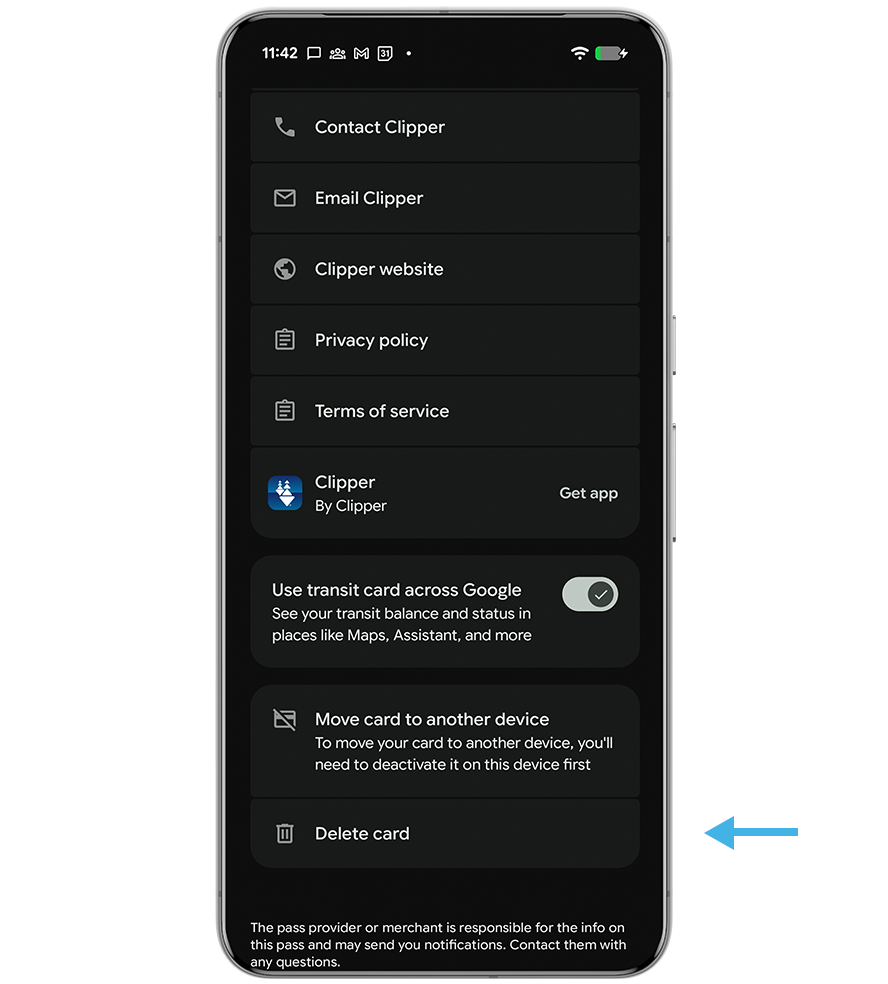
- Tap the three dots in the upper righthand corner and select "Move to another phone" and follow the instructions on your screen
Note: In order to move your Clipper card to your new Android phone, you must first remove it from your old Android phone by tapping the three dots in the upper righthand corner and selecting "Move to another phone."
Google Pay and Google Wallet are trademarks of Google LLC.
Questions?
Frequently Asked Questions.
If you need further assistance, you can contact Clipper Customer Service at 877.878.8883 for questions about your Clipper account and Google support, Opens in new window for questions about Google Pay.

