How To Use Clipper on Your iPhone and Apple Watch
Ready to get started? Click the links below for step-by-step instructions.
Please ensure you have an iPhone 8 or newer running at least iOS 16.4, or an Apple Watch Series 4 and newer running iOS at least 9.4. You cannot transfer blocked cards, TransLink cards and cards with a Gator Pass or VTA SmartPass to Apple Wallet.

Common Questions
If you have a Clipper card on your iPhone or Apple Watch, removing your card and adding it back again from your previous cards list in Apple Wallet will upgrade your card to the next-generation Clipper card.
- On your iPhone, open the Wallet app
- Select your Clipper card
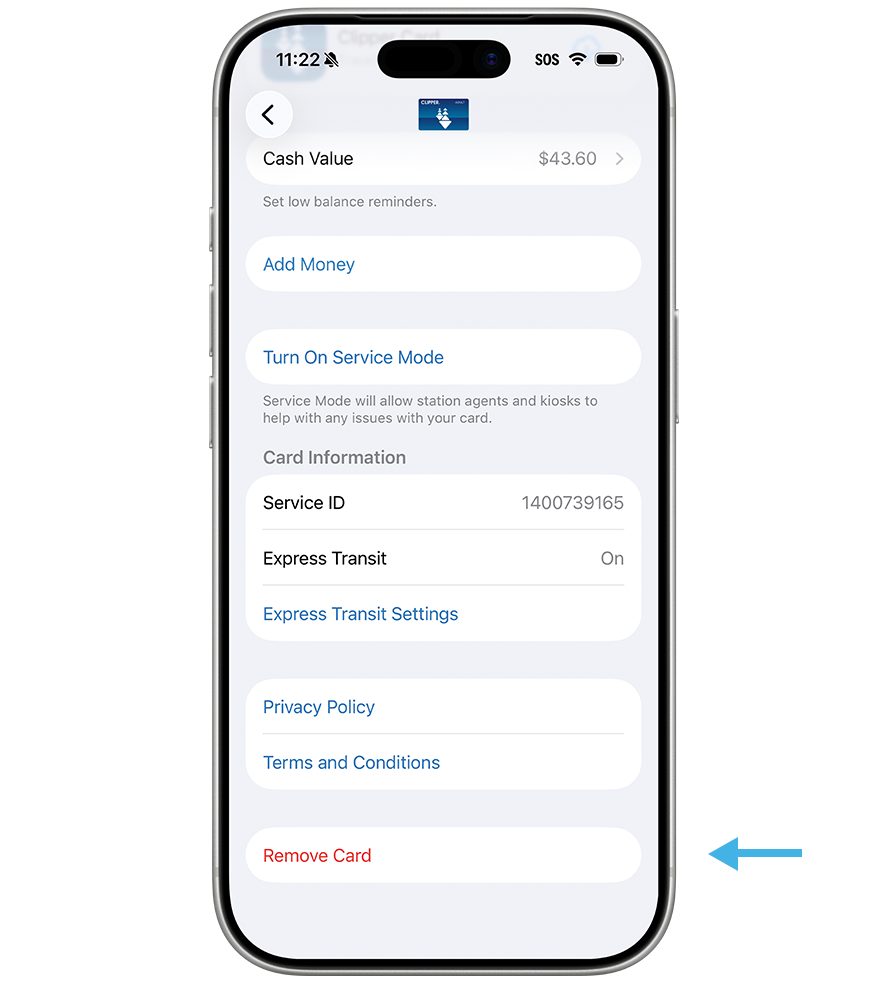
- Tap the "…" button, then tap "Card Details"
- Scroll down and tap "Remove this Card" and tap "Remove" to confirm
- To re-add your existing card to your iPhone, open the Wallet app and tap the "+" button
- Tap "Cards Found For You" and choose your transit card
- Follow the instructions to add your Clipper card to your iPhone
- It may take time for card balance to reflect correctly
- Balance will not show on the reader when traveling
- Transit ride history may take time to reflect the full trip cost
- If you are a BART HVD customer, any pending autoload transactions will take up to 3 days to reflect
There are two ways you can set up a new Clipper card:
Option 1 (in Apple Wallet):
On your iPhone YouTube, Opens in new window
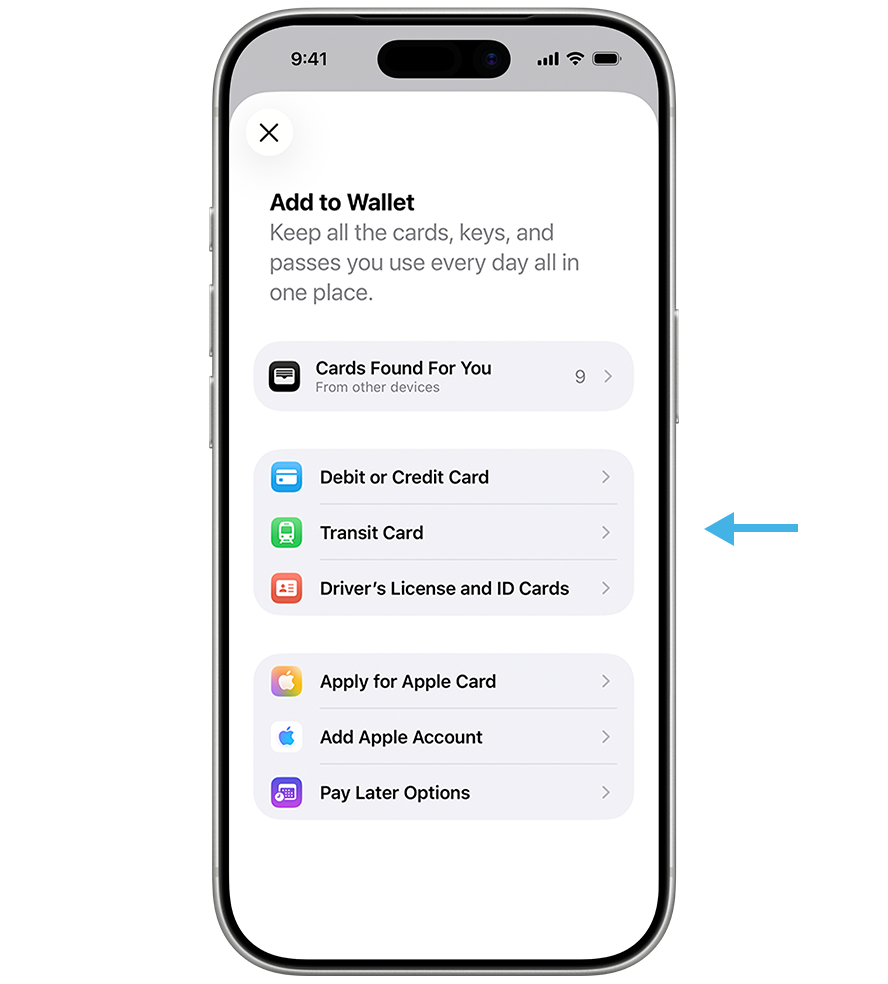
- Open the Wallet app on your iPhone and tap the plus “+” icon
- Select "Transit Card"
- Select "Clipper card" from the list and tap "Continue"
- Select the value amount to add and follow prompts to complete purchase (Note: This is the only way you will be able to add cash value to your phone in Apple Wallet)
On your Apple Watch
- Open the Wallet app on your Apple Watch
- Scroll down and tap "Add Card"
- Tap "Transit Card" to add a new Clipper card or tap "Previous Card" to add a Clipper card you previously added to the Wallet app
- Choose "Clipper card" from the list and tap "Continue"
- Choose an amount to put on the card and tap "Add Money"
- Follow the steps on the screen to confirm your purchase and add your Clipper card
Option 2 (in Clipper app):
- Download the Clipper app from the Apple App Store, Opens in new window
- Create an account or sign into your existing account
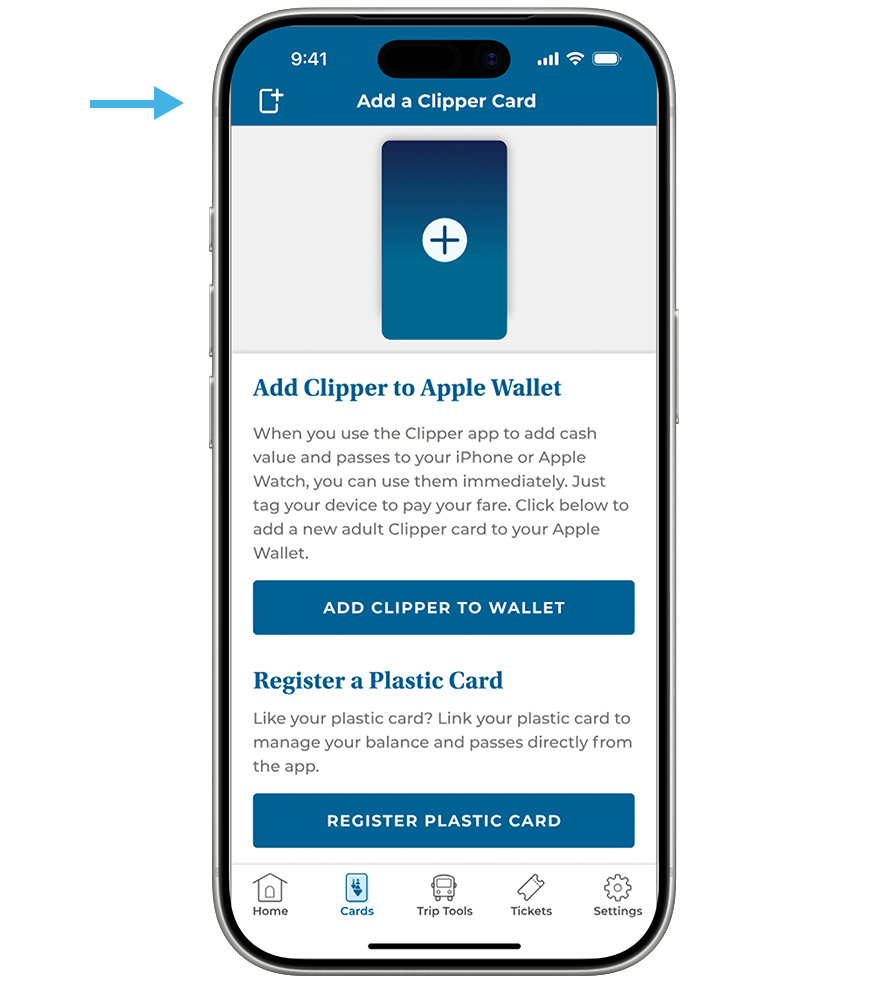
- Tap the "Cards" icon on the app menu at the bottom of the screen
- Tap the card with the plus "+" sign at the top of the screen, or tap "Add Clipper to Wallet" button below and follow directions on the next screen
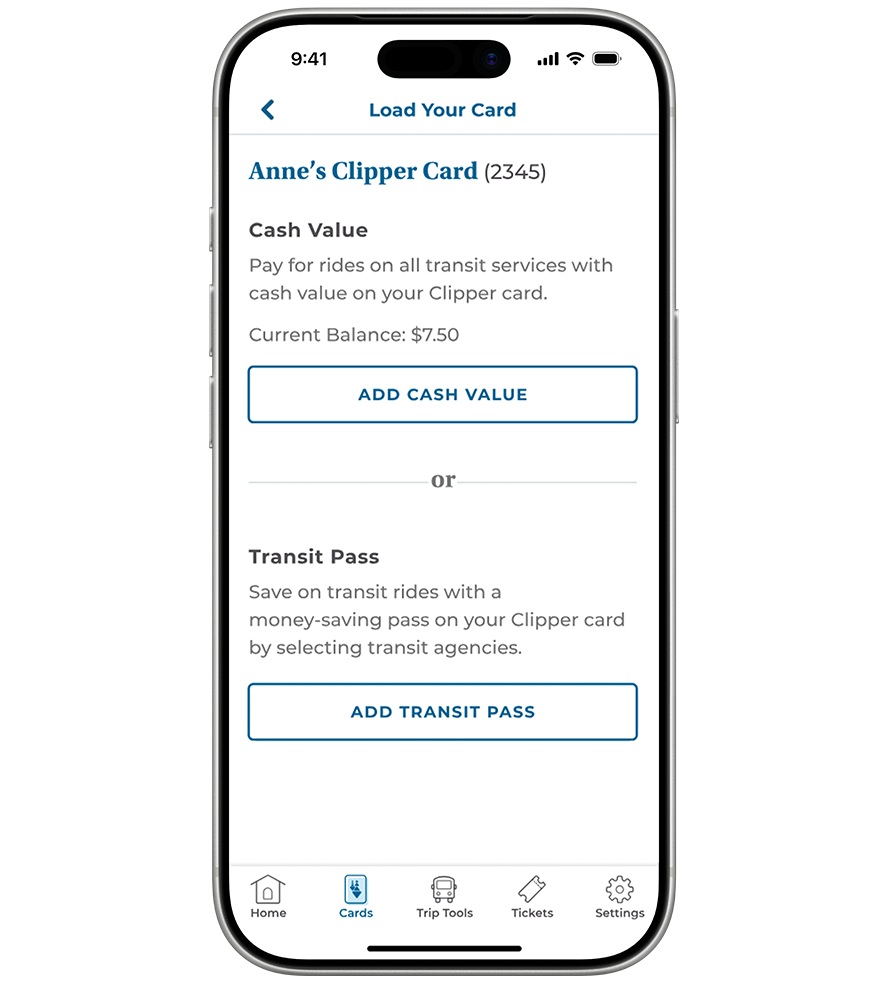
- Select “Cash Value” or “Transit Pass” and follow directions for how you would like to add value to your Clipper card, and if you would like to set up Auto-Reload
- Review your order and tap "Add to Apple Wallet"
- Select “Done” and your new Clipper card is now ready to use in Apple Wallet!
You will have to register your plastic Clipper card and create a Clipper account if you have not already done so in order to transfer it to your Apple Wallet.
Once you transfer your plastic card to iPhone, your plastic card will be deactivated for transit use.
- Sign in to your Clipper app and tap the "Cards" tab
- Select the registered card you would like to transfer and tap "Manage Card"
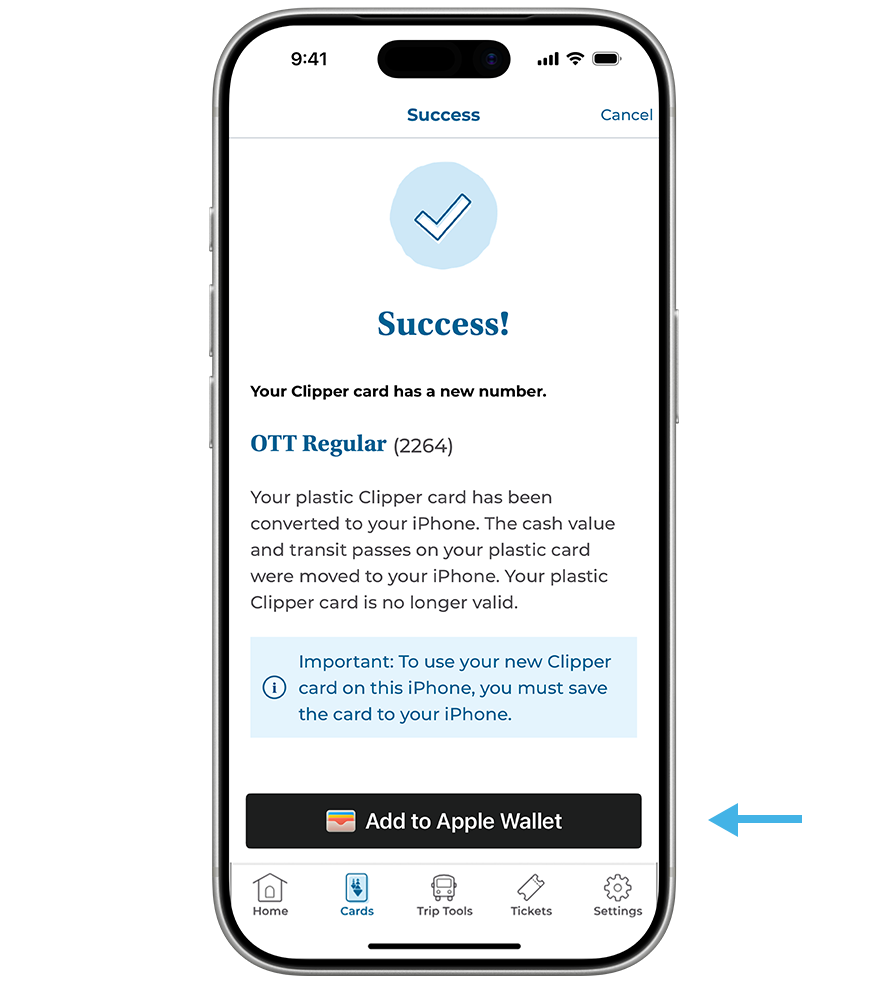
- Tap "Convert Clipper to Your Phone" and tap "Continue"
- Tap "Add to Apple Wallet" and tap "Continue"
- If you have a paired Apple Watch, choose which device to add your card
- If you do not have a paired Apple Watch, tap "Continue"
- Your card will be added to Apple Wallet, after which you will be returned to the card screen on the Clipper app
- Set up your Clipper card's Express Transit Settings in Apple Wallet and tap and go!
Note: If you are a bike share user or an Clipper Access cardholder, you will need to keep your plastic card.
There are two options to add value to your Clipper card on your iPhone or Apple Watch:
Option 1 (in Apple Wallet):
- Open Apple Wallet on your iPhone or Apple Watch
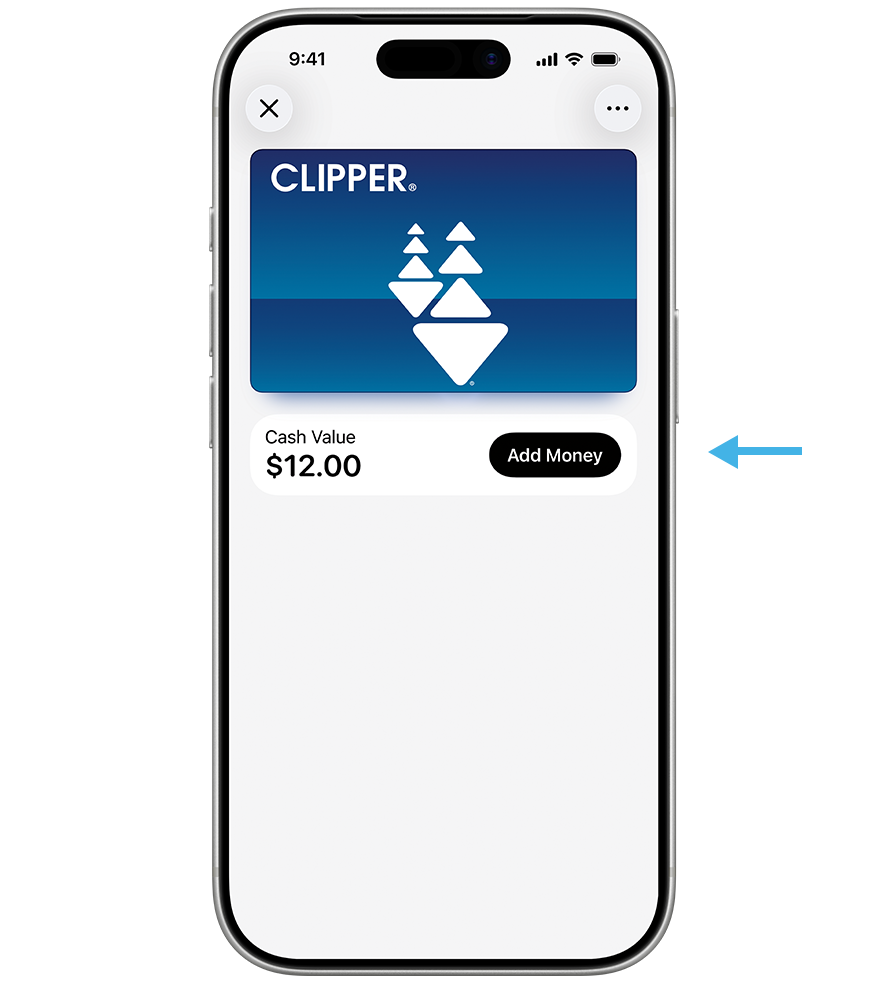
- Select the Clipper card that needs additional value
- Select "Add Money"
- Select a cash amount to load onto your Clipper card, tap "Add"
- Complete the transaction with Face ID by double-clicking the side button of your iPhone to pay
- Your new balance is displayed in Apple Wallet and is immediately ready to use
Note: If you want to add value using cash, use a BART, Muni, Golden Gate Ferry or SMART ticket machine; a Clipper-compatible Caltrain ticket machine; or an in-person Clipper Customer Service Center.
Option 2 (for registered cards in Clipper app):
- Open the Clipper app and sign in to your Clipper account
- Tap the "Cards" tab at the bottom of your screen and select the card you want to add value to
- Select "Load Cash Value or Passes"
- Select "Cash Value" to pay for rides on all transit services or "Transit Pass" if you want to purchase a pass
For Cash Value
- Select "One-Time Load" to add value once or "Set up as Auto-Reload" to automatically reload when your cash value is below $10 or your pass expires
- Confirm your payment method details and complete the transaction by tapping the "continue" and "confirm" buttons
For Transit Pass
- Tap "Transit Pass" and select your agency from the list and choose the pass you would like to purchase
- Tap "One-time Load" to add the pass once if applicable or "Set up as Autoload" to automatically reload your card with the same pass after it expires
- Confirm your payment method details and complete the transaction by tapping the "continue" and "confirm" buttons
Your new balance will update in the Clipper app and Apple Wallet and is immediately ready to use on your iPhone or Apple Watch.
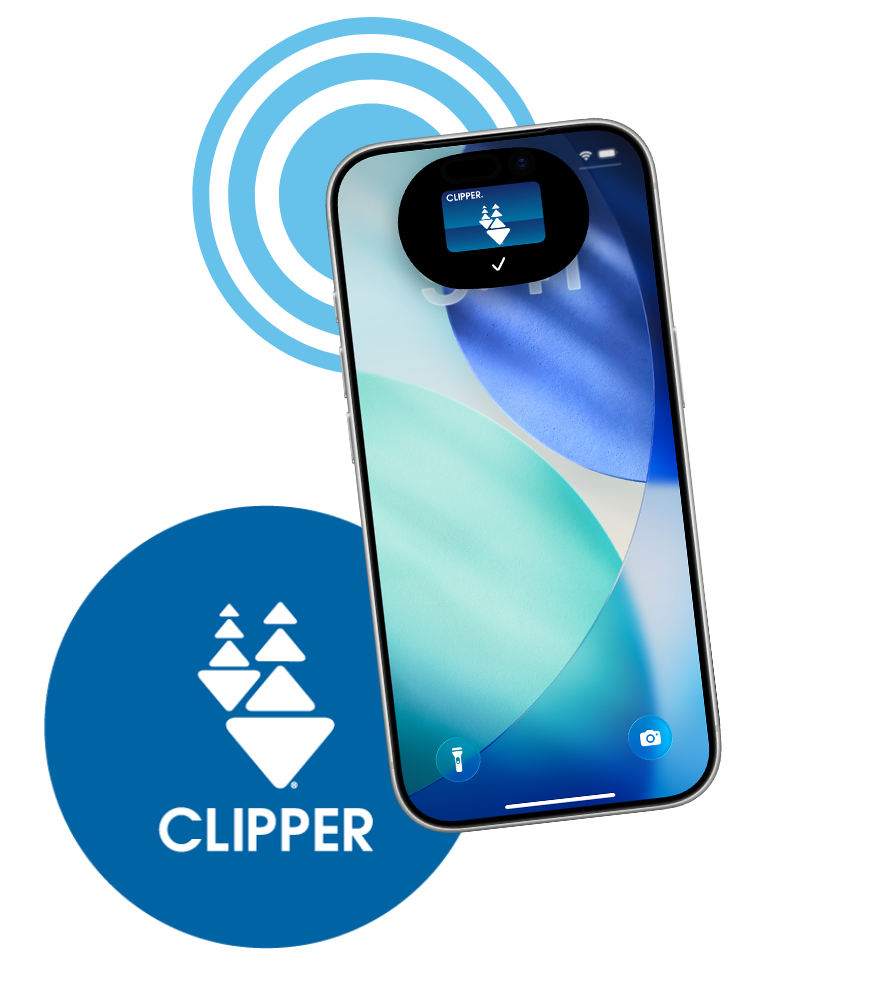
To tap your iPhone or Apple Watch, simply hold it over the Clipper reader screen or target every time you board a bus, train, or ferry—including when you transfer. There is no need to open an app. With Express Transit enabled, you do not have to validate with Face ID, Touch ID or enter a passcode. Learn more about using Express Transit with Apple Pay, Opens in new window.
To use Clipper in Apple Wallet on SFMTA cable cars and other transit services using handheld card readers, all customers must authenticate with Face ID, Touch ID or passcode.
Your Clipper card must be removed from your old iPhone before you give up possession of the iPhone. When you remove a transit card from any device, the remaining balance and passes will be saved and available to be transferred to another iPhone or Apple Watch that is connected to a network and signed into iCloud with the same Apple ID.
Remove Clipper from Apple Wallet
- Open Apple Wallet on your iPhone or Apple Watch
- Select the Clipper card you wish to remove
- Tap the more options button "…" on the top-right of the screen
- Select "Remove This Card" to remove Clipper from Apple Wallet
Note: If you have not removed your Clipper card from your old device, you will not be able to add it to your new device.
Move Clipper to Another Apple Device
- After you've removed your Clipper card from your old device, open the Wallet app on your new iPhone and press the plus "+" icon
- Tap "Previous Cards" and choose your transit card
- Add your transit card to the new iPhone
If you no longer have possession of your old iPhone or Apple Watch (device powered off or no network connection)
- Log into iCloud.com, select "Account Settings"
- Select your old iPhone and follow the prompts to "Remove all" from wallet
- Open the Wallet app on your new iPhone and tap the plus "+" icon
- Select "Transit Card"
- Select "Clipper card" and tap "Continue"
- Select "Add a Different Card" then follow prompts to purchase and add a new Clipper card to Apple Wallet
- Please wait two hours before calling Clipper Customer Service at 877.878.8883 to transfer your previous card balance
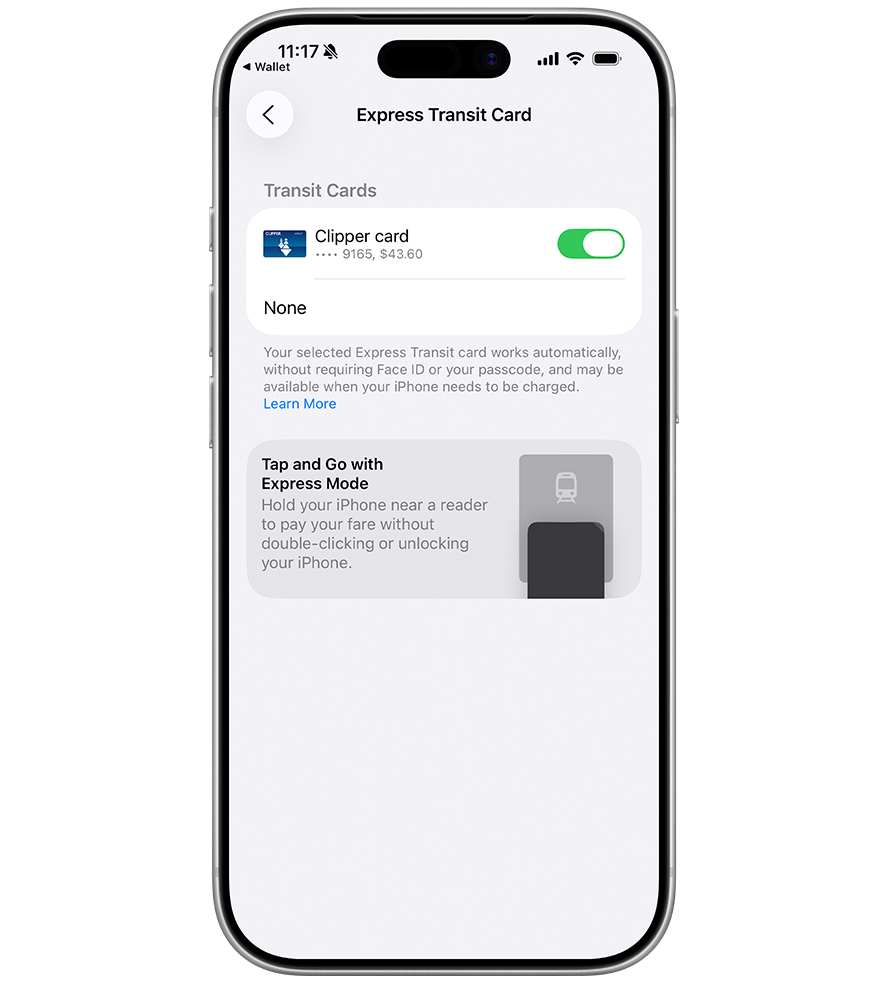
If your iPhone prompts you to add your passcode before tapping your Clipper card, Express Transit could be disabled.
To re-enable Express Transit, open Apple Wallet and select your Clipper card. Tap the three dots in the top right corner, tap "Card Details" and scroll down to, and tap, "Express Transit Settings." Move the Express Transit, Opens in new window. toggle to "On" and your mobile Clipper card will be ready to use without unlocking your phone.
Questions?
If you need further assistance, you can contact Clipper Customer Service at 877.878.8883 for questions about your Clipper account and Apple support, Opens in new window for questions about Apple Pay.
Apple Pay is a service provided by Apple Payments Services LLC, a subsidiary of Apple Inc. Neither Apple Inc. nor Apple Payments Services LLC is a bank. Any card used in Apple Pay is offered by the card issuer.

